
 Search Knowledge Base
Projects
Add metadata

Add data
Reports
Learn how data is organised on Moveshelf and how to add subjects and sessions to your projects.
Moveshelf data structure
 If your organization has a deep IT integration it is possible that this process is automated and does not require you to manually create subjects.
If multiple sessions are added to one subject, the sessions will be ordered by the session date.
This section explains the basic data structure of Moveshelf. This structure can be created manually or automatically. Automation of data categorization is discussed in the section on Directory upload, based on Moveshelf's third party integrations.
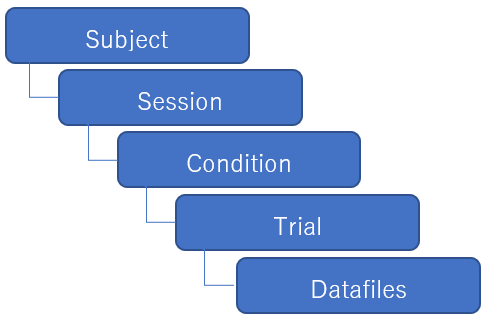
Moveshelf has a subject-oriented data structure. The data of a subject is divided into
Moveshelf has a subject-oriented data structure. The data of a subject is divided into
sessionsA session is an overview of all recorded measurements done in one ‘visit’ of a subject. It can include multiple conditions and trials.
, which then can be divided into conditionsA condition is a state in which a subject has been recorded, e.g., barefoot, or with shoes. It can include multiple trials.
to categorize trials. Your data is ultimately stored in trialsA trial contains all data that was captured of a subject during one recording. It can include multiple data types that have been recorded synchronously, e.g. C3D, video, forces and EMG.
, with one trial per recording. A trial can contain several data types that were recorded synchronously. Add subject
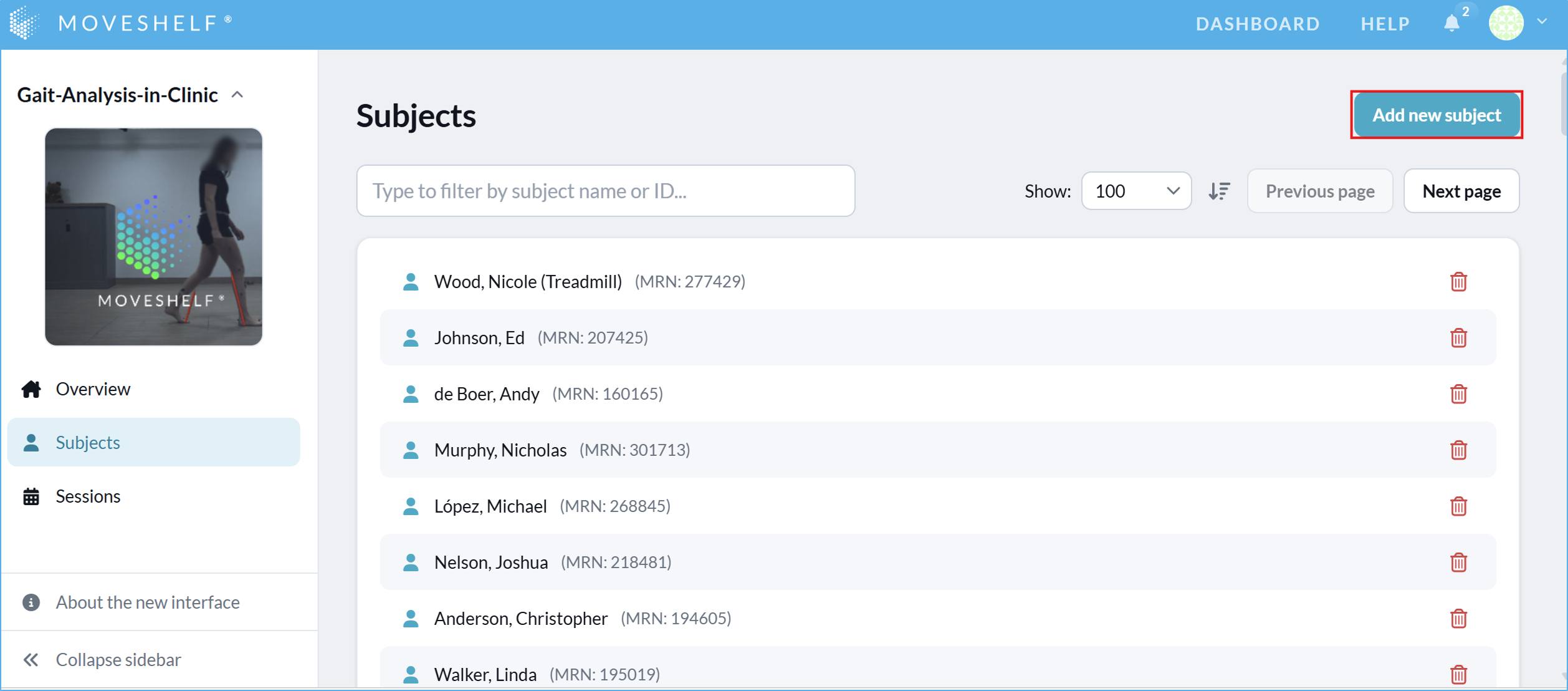
Moveshelf’s workflow is subject-oriented. All data uploaded to Moveshelf belongs to a subject, structured by visits (called: sessions). Populate a project manually by creating subjects:
- Click on 'Add new subject’ to create a new subject.
- Insert a subject ID (e.g. patient number, study participient ID or other ID) and click on ‘Add’.
If your organization has a deep IT integration it is possible that this process is automated and does not require you to manually create subjects.Add session
- Click on ‘Add new session’ to add a new measurement session.
- Select a session date, update the default session name if preferred and click on ‘Add’. The default session name is the selected date, but you can update this by adding text or removing the date from the session name completely (e.g., "3month post-op”).
If multiple sessions are added to one subject, the sessions will be ordered by the session date.