 Search Knowledge Base
Projects
Add metadata

Add data
Reports
You can add subject information to Moveshelf. Subject information includes general subject information (such as date of birth or diagnosis), interventions received, and research projects.
Add general subject information
-
You can add/edit subject information on Moveshelf by using manual input, import with a moveshelf_config_import.json file, or import via EHR. To add/edit subject information manually, go to the subject home page and click on the 'Edit'-button next to the subject's name at the top of the page. Fill in the form and click on ‘Save’.
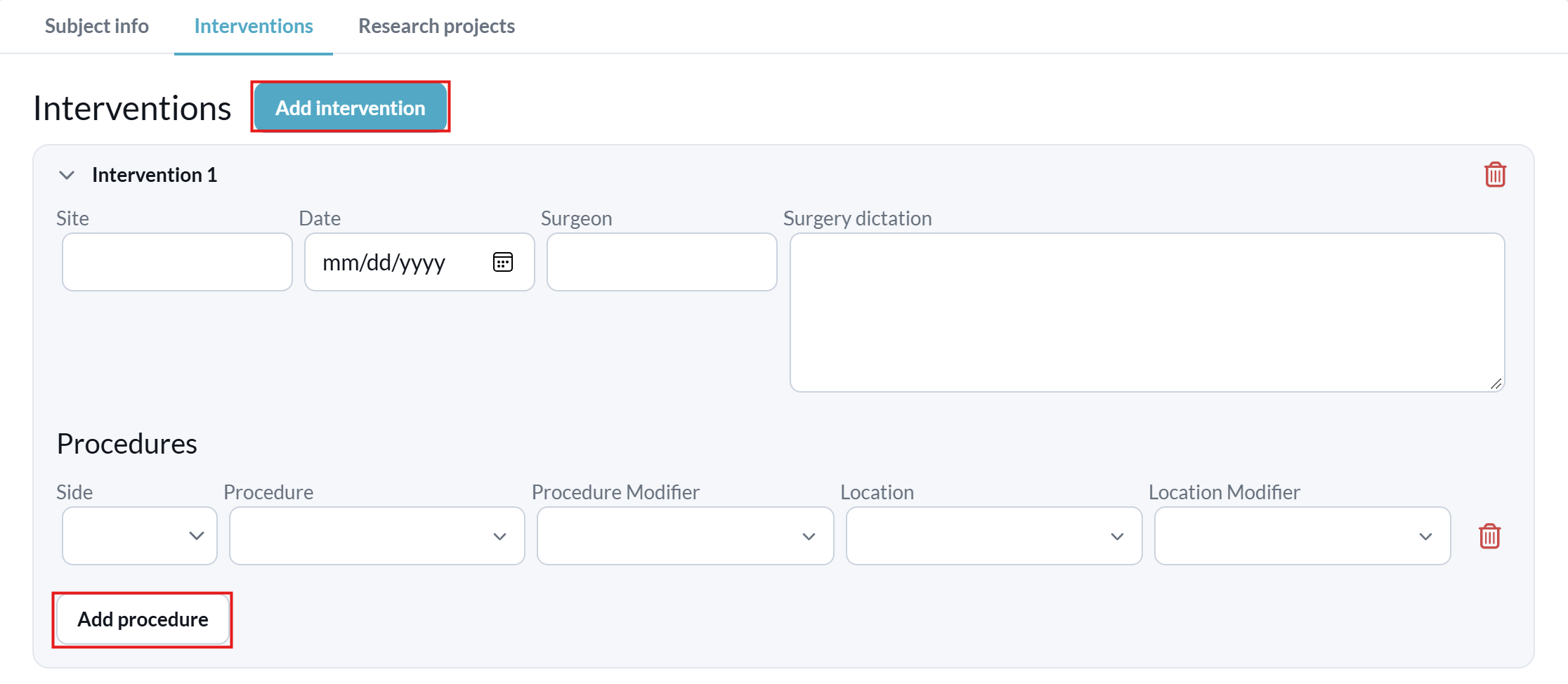
- A subject can have multiple interventions (click 'Add intervention'), and each intervention can have multiple procedures (click 'Add procedure').
- In the Research projects tab, you can add one or more research projects (click 'Add Research').
You can also modify the Subject ID (the name that appears in the subject list on Moveshelf). Note that some fields can have a value for every date. This can be helpful, for example, when specifying a body weight to use for normalizing moments and powers in trials from a specific date.
 When entering the EHR ID for a subject, ensure it is unique within the project. When you enter an EHR ID that already exists, an error message will be displayed, and the subject information will not be updated.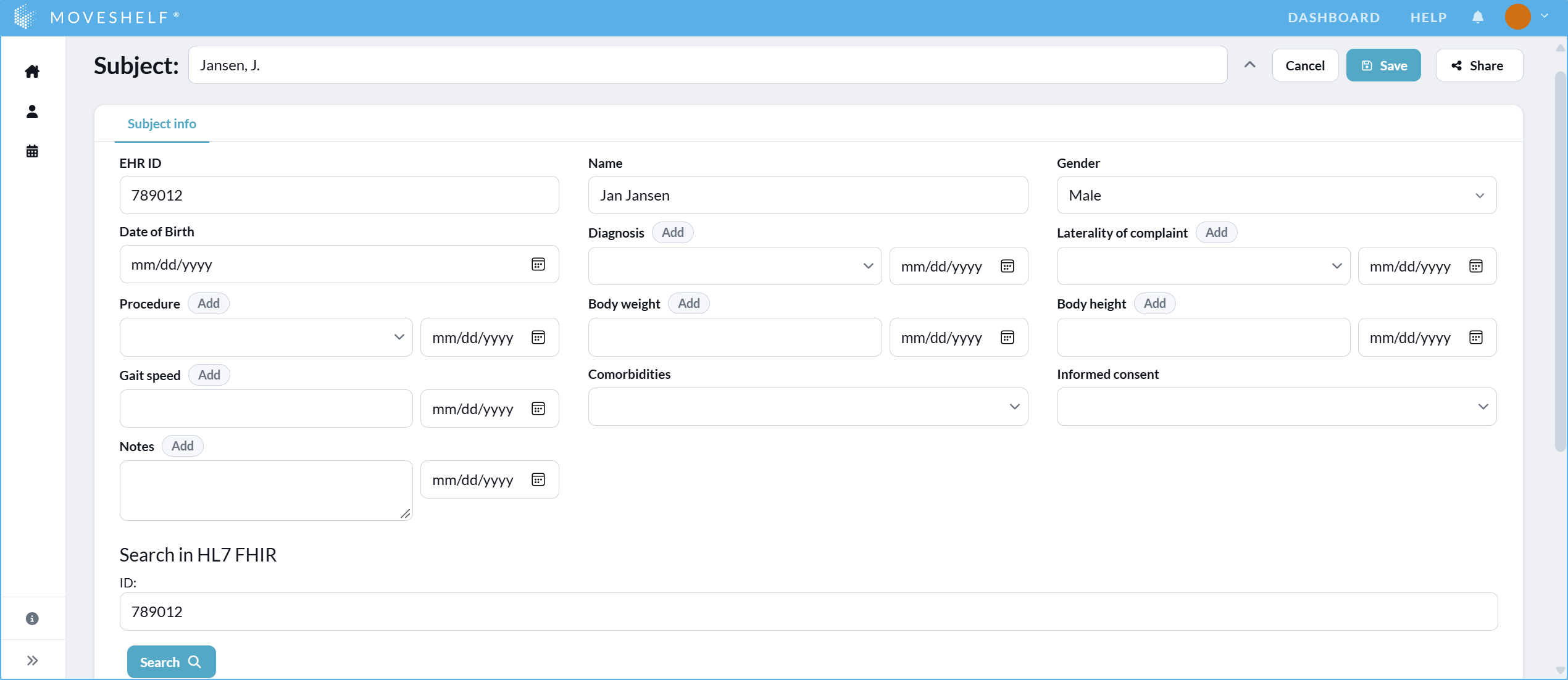
Add intervention/research information
This feature is optional and only visible to Enterprise customers with this feature enabled.If this feature is enabled, click the 'Edit' button next to the subject’s name and navigate to the Interventions or Research projects tab.
You can also import intervention / research information with metadata import using a moveshelf_config_import.json file.
Add session information
This feature is optional and only visible to Enterprise customers with this feature enabled.
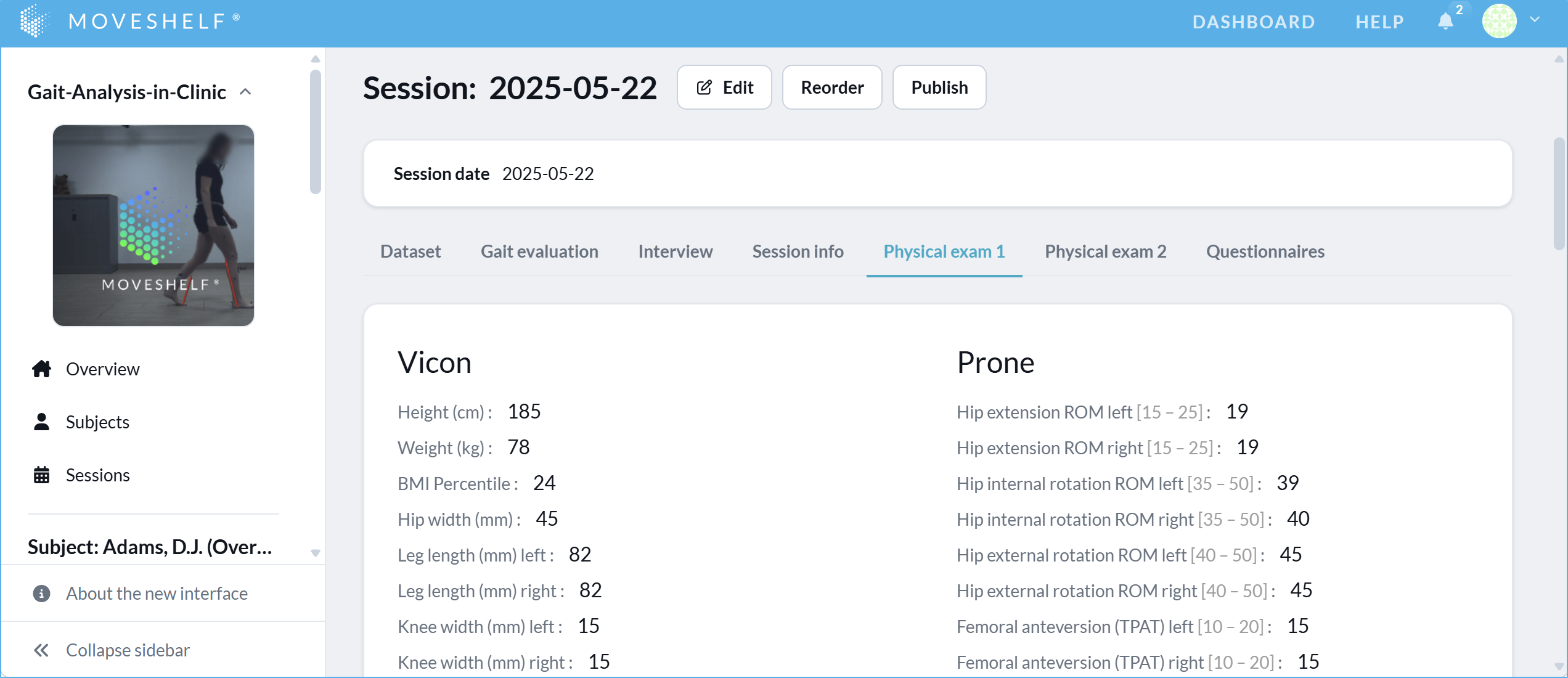
If this feature is enabled for your organization, you can add and view additional session information, like patient history, outcomes and reference data of a physical exam, recommendations or more (see image below).
Add specific session information by navigating to the session home page (click on the session name on the subject home page or in the navigation menu on the left) and click on ‘Edit’ next to the session name to open the session edit mode. In this edit mode, you can also change the session name, session date, and session label. Make sure to save your changes when you’re done.
You can also import session information with metadata import using a moveshelf_config_import.json file.
Session label
To identify different data collection workflows / labs you can add a session label. The session label is shown on the session home page and next to the session name in the left navigation panel (see image below). Session labels are added automatically based on the Directory upload type, or can be set manually in session edit mode.
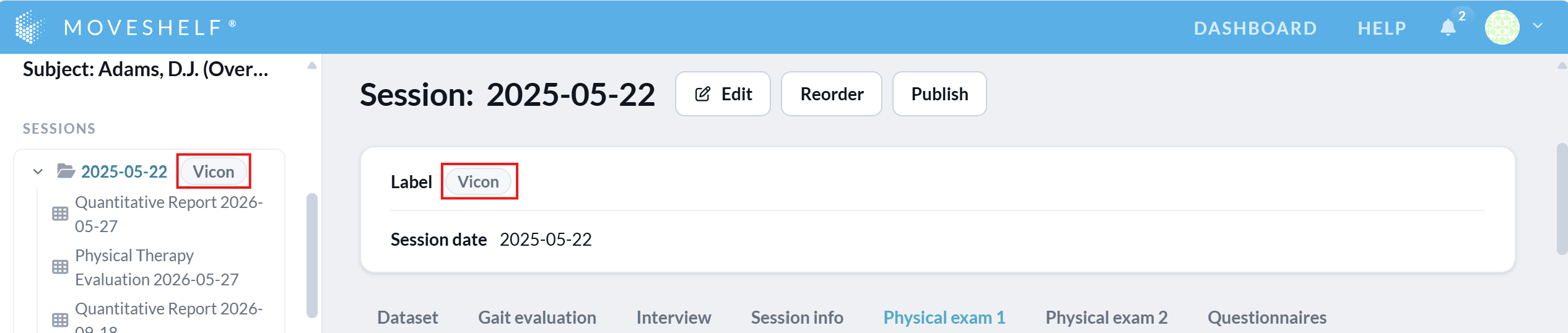
When uploading data using a moveshelf_config_import.json file, you can now specify the field “sessionLabel”. This session label will be added to the current session during the upload. Please note that this field overrides existing session label and label from upload type.
In addition to organizing your data, session labels can also be used to specify different report templates for different workflows or labs. When you create two sessions with different labels (for example, one labeled “Gait” and one “Sports”) for the same subject, ensure each session name is unique.
Add condition information
This feature is optional and only visible to Enterprise customers with this feature enabled.
-
If this feature is enabled for your organization, you can edit and view condition information for each condition.
- If your session has multiple conditions, you can add condition information separately for each condition. For example, in the screenshot below the session contains two conditions: Barefoot and Brace. Condition information can therefore be entered for both.
- If your session does not include any conditions, it's not possible to enter condition information.
Adding condition information works the same way as adding session information. Condition information is listed under the tab "Condition info" in the session home page. Each condition has the same set of parameters. In the example below, these are: Walking speed, Footwear, Orthotics, Assistive device, and Pain score.
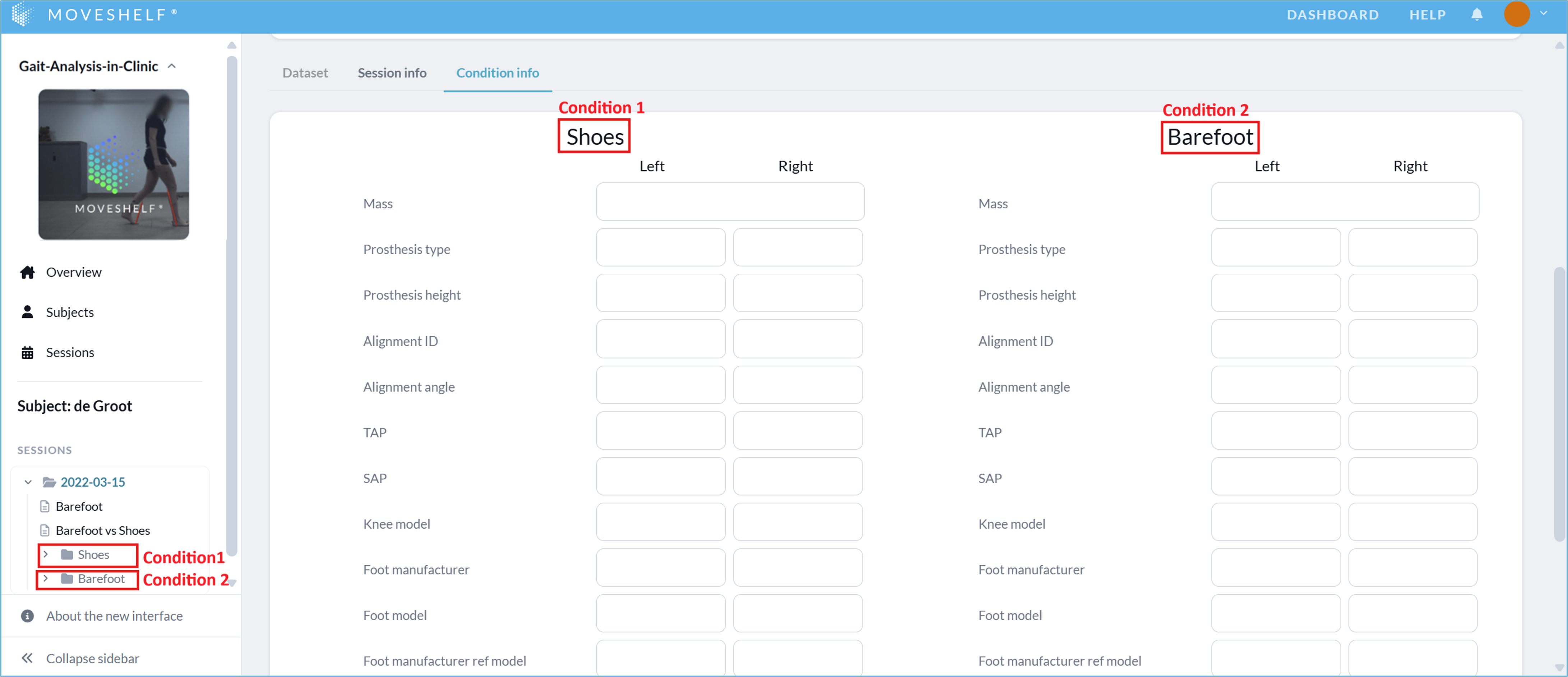
You can also import condition information with metadata import using a moveshelf_config_import.json file.
Customize metadata
This feature is optional and only visible to Enterprise customers with this feature enabled.
Subject / session / condition information tabs can be added or modified. As an Organization owner, it is possible to edit the dropdown list entries in the metadata template editing page. For other changes that are not dropdown list entries, follow the steps under “Request changes to Moveshelf support” below.
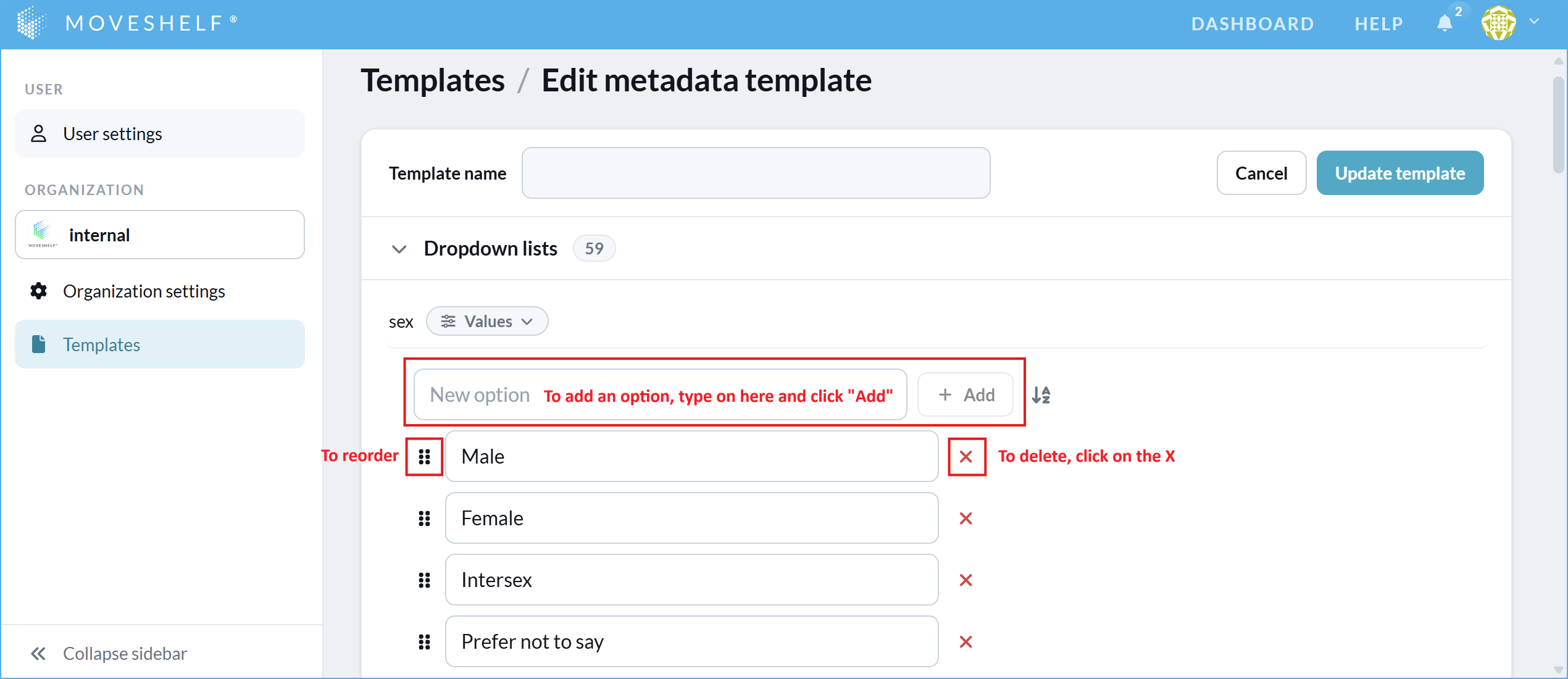
Edit dropdown list options
Organization Owners can update dropdown list entries in a metadata template:
- Go to your organization settings page by clicking on your profile avatar in the top right and select 'Settings'.
- Click on 'Templates' in the left sidebar navigation menu.
- Click on the pencil to access the "Edit Metadata Template" page of the template in which you want to make the change.
- Available actions:
- To sort options alphabetically select the A to Z arrow
- To add an option write on the text field
- To remove an option click on the "X"
- To reorder, place the mouse on the six square icon
- To rename an existing field type on that specific text field
- After making changes, click on "Update Template" next to the "Template name". Please review the changes carefully. When you press “Apply changes”, all projects with that Metadata template will be directly affected.
- Download the correct Excel template:
- For configuring subject / session / condition information from scratch: Metadata configuration template.
- For adjusting an already existing subject / session / condition information configuration: Metadata configuration change request template.
- Fill the Excel template according to the instructions in the template.
- Send the completed Excel file to Moveshelf support for review and implementation.
- When the provided input is reviewed and accepted by Moveshelf, it will be implemented exactly as specified. This includes the defined order, possible spelling errors, and capitalization.
Request changes to Moveshelf support
To request changes that are not dropdown list entries, follow these steps:Concurrent edit warnings
Moveshelf displays warning messages to prevent data conflicts when multiple users attempt to edit or save the subject or session information simultaneously. These warnings help you take appropriate action before proceeding.
Warning when another user is editing
If you enter Edit mode while another user is already editing the same subject or session information, a warning message will appear. This message will include the other user’s username and the time they started editing. This helps you coordinate changes and avoid potential data loss.

Warning when saving changes
If you attempt to save while another user has already made and saved changes, you will receive a conflict warning. You will have two options:
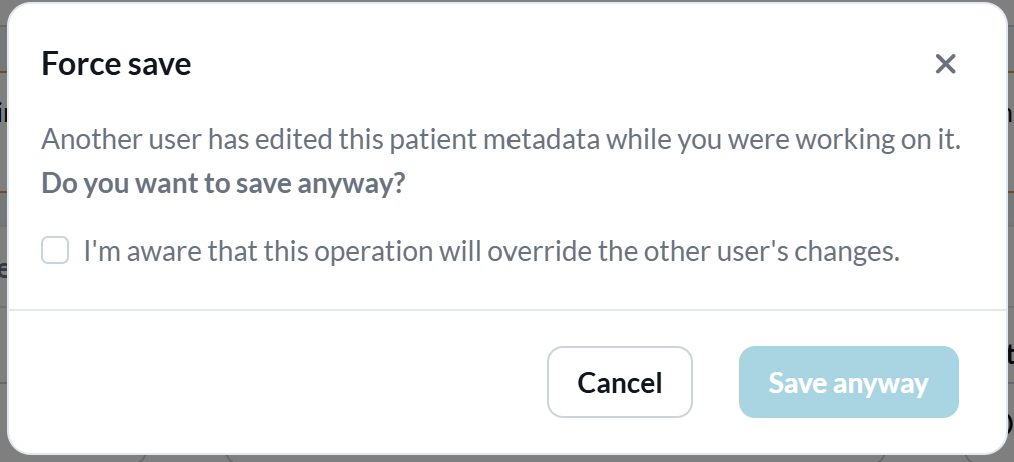
- Save anyway - Select "I'm aware that this operation will override the other user's changes." and click "Save anyway".
This will overwrite the other user's changes and makes your changes the most recent version. - Cancel - Keeps the other user’s changes intact and returns you to Edit mode.
Note: if, while you are editing subject or session information on Moveshelf, another user uploads data to that subject or session information, you will also receive the warning above.Import subject information via EHR
This feature is optional and only visible to Enterprise customers with this feature enabled.
Import subject information through the connection between Moveshelf and your EHR:
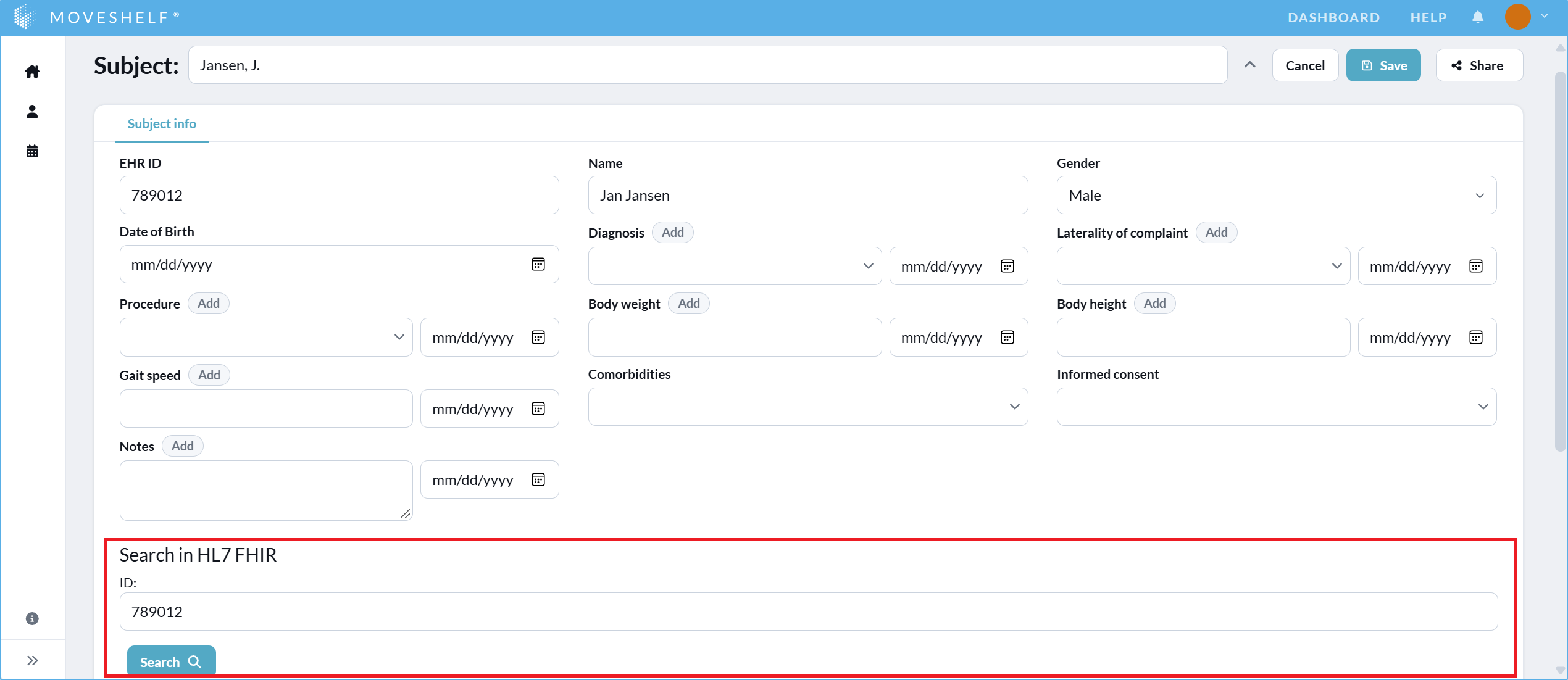
- Search for the subject using EHR ID (see highlighted in the image below).
- Click on the copy icon that appears with the results, to copy the information to Moveshelf.
- Click on ‘Save’ to save the subject information.