
 Search Knowledge Base
Projects
Add metadata

Add data
Reports
Projects are the spaces where your subjects and their data are stored, and where you collaborate with your team. Here you can find how to create and manage projects, add and remove members, and configure project access settings.
Create a new project
 Only organization owners can create new projects. In case you do not see the button, but you would like to create a project, contact Moveshelf support.
Email invites are only possible for specific configured email domains for each organization.
Inviting a new user that prompts the creation of a new account on Moveshelf can only be done by the owner of the organization on Moveshelf. You can find the owner of your organization in the organization settings page.
By setting the project as a global project, you can grant all members of your Moveshelf organization (
Adding a new Moveshelf user when you have SSO enabled
Note, this will remove the user from the organization and from all projects within it. If you only need to remove a user from a single project, see remove user from a project.
Note that if you delete this project, all data of this project will be deleted. Please contact Moveshelf support if you have accidentally deleted a project.
You can add new projects to your
Follow the instructions below to create a new project:
DashboardThe dashboard holds an overview of all projects of which you are a member.
. A project is a space where all your subjects and their data are stored, and where you collaborate with your team (project membersA member is a user who has been granted access to a project. A member can have different roles; Admin, Editor or Viewer.
). Every single project has its own private and separate space. This means that data is only accessible for people that are a member of this project. Separate projects have the advantage that you can work with different teams and create stand-alone databases dedicated to a study or department (optional).
Follow the instructions below to create a new project:
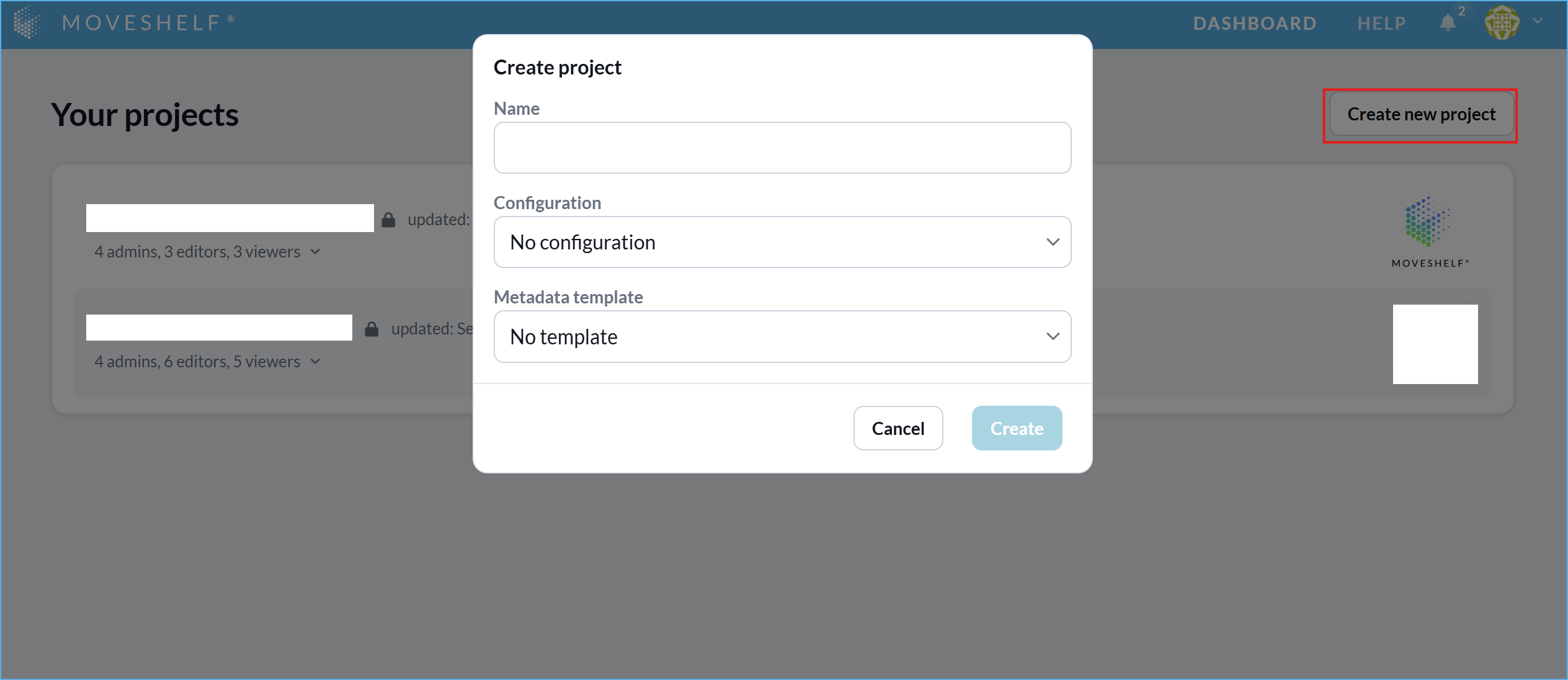
- Click on ‘Create new project’ to add a new project to your Moveshelf dashboard.
- In the pop-up window:
- Name: insert a project name
- Configuration (optional): select a project configuration from the available options.
- Metadata Template (optional): select a metadata template from the available options.
- Click on ‘Create’
adminAn admin is a member that has the rights to add others to a project, delete the project, edit data, and view data.
in the projects that you create.
Only organization owners can create new projects. In case you do not see the button, but you would like to create a project, contact Moveshelf support.
Add members to a project
A
Adding a member to a project can prompt the creation of a new account on Moveshelf if this person did not yet have an account. The workflow and automatically generated notifications are dependent on whether the user already had an account on Moveshelf and whether your organization has Single Sign On (SSO) or manual login enabled. Please read the paragraphs below for specific information on this and recommended workflow.
projectA project is a space where subjects and their data are stored, and where you can collaborate with the members of that project.
can have multiple members, as a way to give access to its contents to a selected group of people. Members can be given different roles (viewerA viewer is a member that only has the right to view data (e.g., clinicians).
, editorAn editor is a member that has the rights to edit and view data (e.g., lab operators).
or adminAn admin is a member that has the rights to add others to a project, delete the project, edit data, and view data.
) which have different rights on Moveshelf, see Project roles. Only project adminsAn admin is a member that has the rights to add others to a project, delete the project, edit data, and view data.
can add members to their project(s).
Adding a member to a project can prompt the creation of a new account on Moveshelf if this person did not yet have an account. The workflow and automatically generated notifications are dependent on whether the user already had an account on Moveshelf and whether your organization has Single Sign On (SSO) or manual login enabled. Please read the paragraphs below for specific information on this and recommended workflow.
General steps to add a member to a project
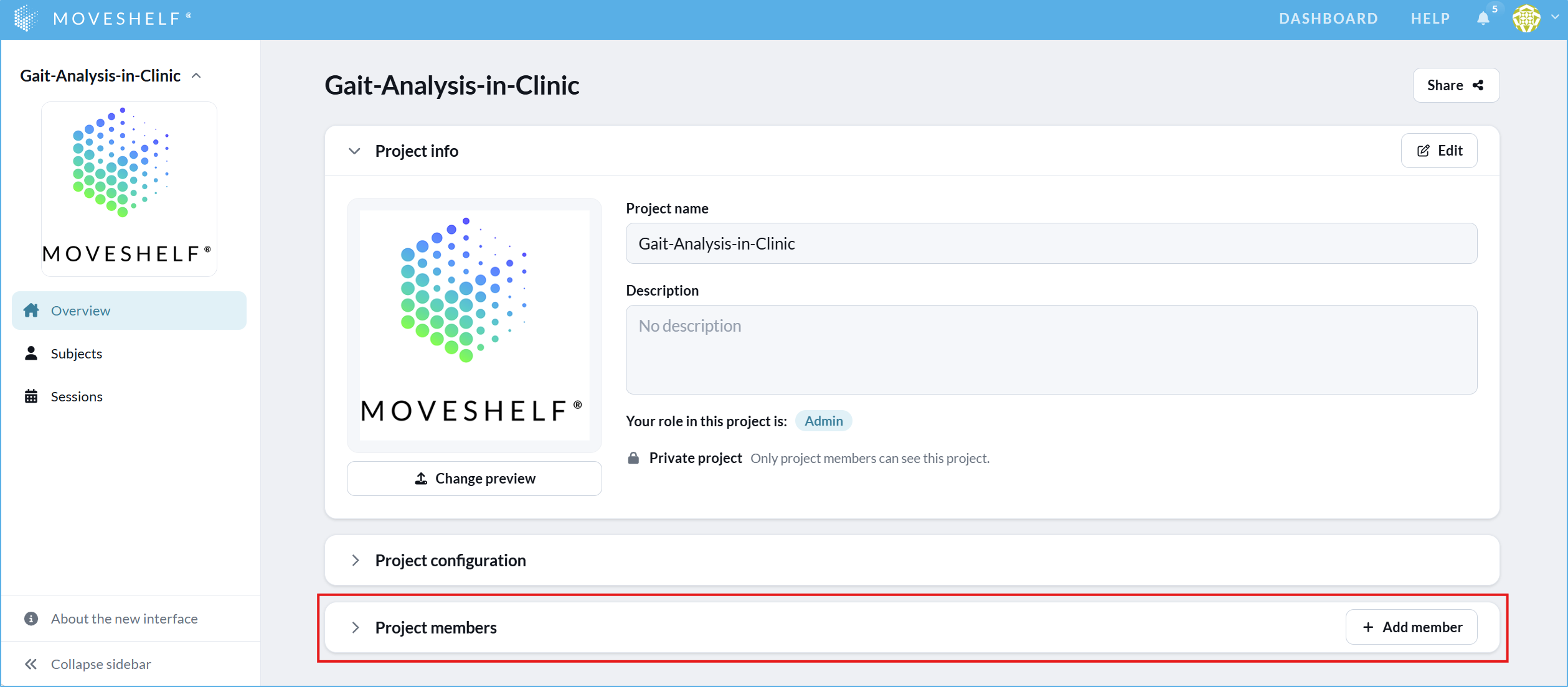
- Click on the plus sign in the project overview page to add a member to your project.
- Insert a business email address or Moveshelf username, select a role, and click on ‘Add’.
- The invited member is listed on the project overview as (pending) when they have not yet activated their account.
- Some additional actions might be required to arrange access to Moveshelf for a new account of the invited user. Please read below.
- Adding a member does not send a notification to the invited email address about being added to the project. If preferred, please send an email to the new member with a link to the project.
Email invites are only possible for specific configured email domains for each organization.
Inviting a new user that prompts the creation of a new account on Moveshelf can only be done by the owner of the organization on Moveshelf. You can find the owner of your organization in the organization settings page.
By setting the project as a global project, you can grant all members of your Moveshelf organization (viewerA viewer is a member that only has the right to view data (e.g., clinicians).
-only) access to your project without having to add each of them as a member within the project.
Adding a new Moveshelf user when you have SSO enabled
This feature is optional and only visible to Enterprise customers with this feature enabled.
When you have SSO enabled, and you would like to add a new user to a project, please go through the following steps:
- Add the member according to the steps described above.
- As your organization has SSO enabled, you also need to make sure the user has Microsoft Entra ID (Azure AD) access to Moveshelf.
- Now, the user will have access to Moveshelf and the project you invited them for. If preferred, you can notify the user by email and provide the project url, or the user can start working with Moveshelf by entering the platform through the hospital's electronic patient file in case of an EHR integration.
Adding a new Moveshelf user when you have manual login (no SSO)
- Add the member according to the steps on top of this section.
- The invited user will receive an automated email with instructions and an url to activate his account. Please send the invited user an email to notify them of the invitation and to request to look for the email, also in the spam folder. If the email cannot be found (e.g. blocked by the organization's firewall), please contact Moveshelf support for help.
Adding an external user
Follow the steps below to add a person from outside of your organization to your project. For more information, see External users. External users always use password login (no SSO).
- Add the member according to the steps on top of this section, but make sure to select the 'External' checkbox.
- The invited user will receive an automated email with instructions and an url to activate his account. Please send the invited user an email to notify them of the invitation and to request to look for the email, also in the spam folder. If the email cannot be found (e.g. blocked by the organization's firewall), please contact Moveshelf support for help.
Remove users from a project
Users can only be removed from a project by an
To remove a user from a project:
adminAn admin is a member that has the rights to add others to a project, delete the project, edit data, and view data.
.
To remove a user from a project:
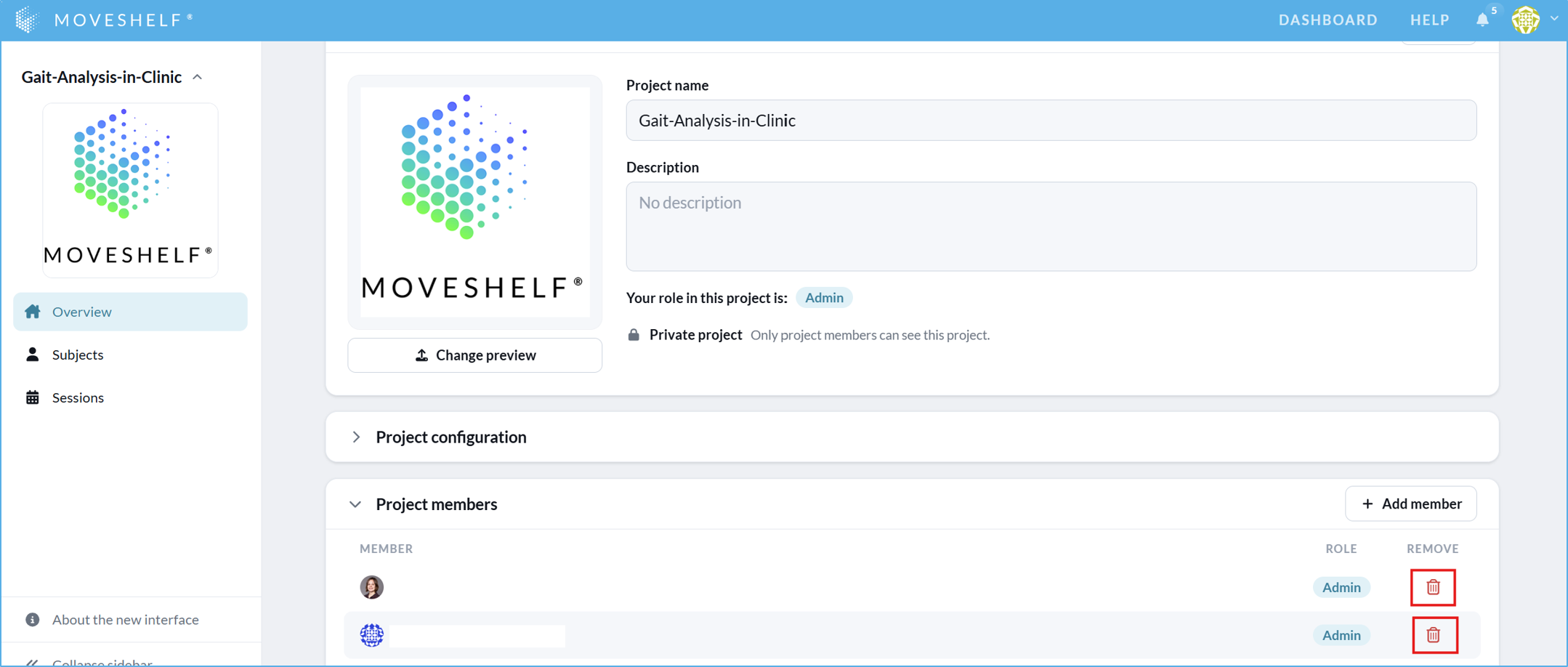
- Go to the project overview page
- In the Project members list, click on the recycle bin next to the user to remove the user from the project.
Remove users from an organization
Users can only be removed from an organization by an owner of the organization. Go to the ‘Organization’ page to check who is an owner for your organization (see steps below).
To remove a user from an organization:
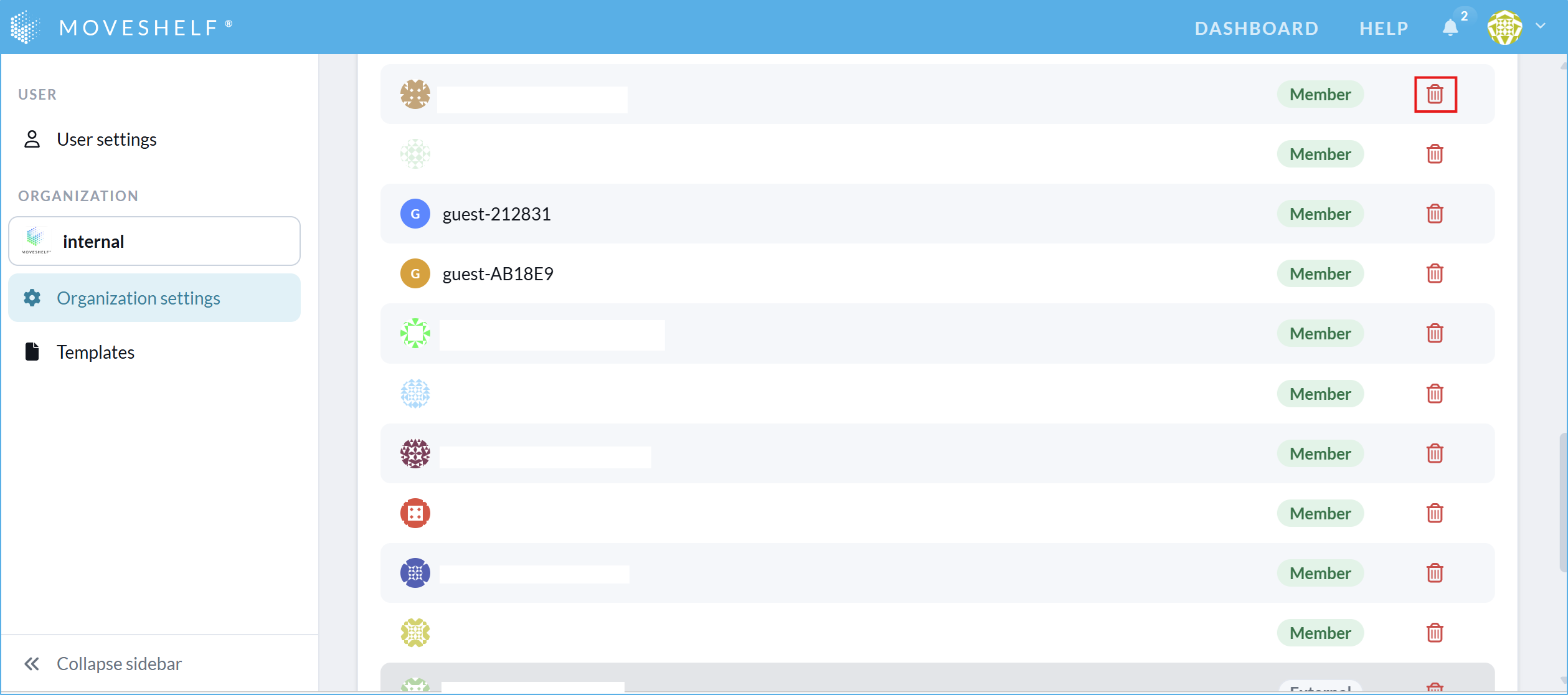
- Go to your organization settings page by clicking on your profile avatar in the top right and select 'Settings'.
- Click on 'Organization settings' in the left sidebar navigation menu.
- Under 'Organization Members', you will see a list of all organization members, along with their roles (e.g., Owner, Member).
- Find the user you want to remove, and click the recycle bin button next to the username.
 Note, this will remove the user from the organization and from all projects within it. If you only need to remove a user from a single project, see remove user from a project.
Delete projects
Projects can only be deleted by the project’s
adminAn admin is a member that has the rights to add others to a project, delete the project, edit data, and view data.
. To delete a project:
- Go to the project overview page and click on ‘Edit’.
- Click on the "Delete project" button .
- Type the name of the project to confirm the deletion of your project.
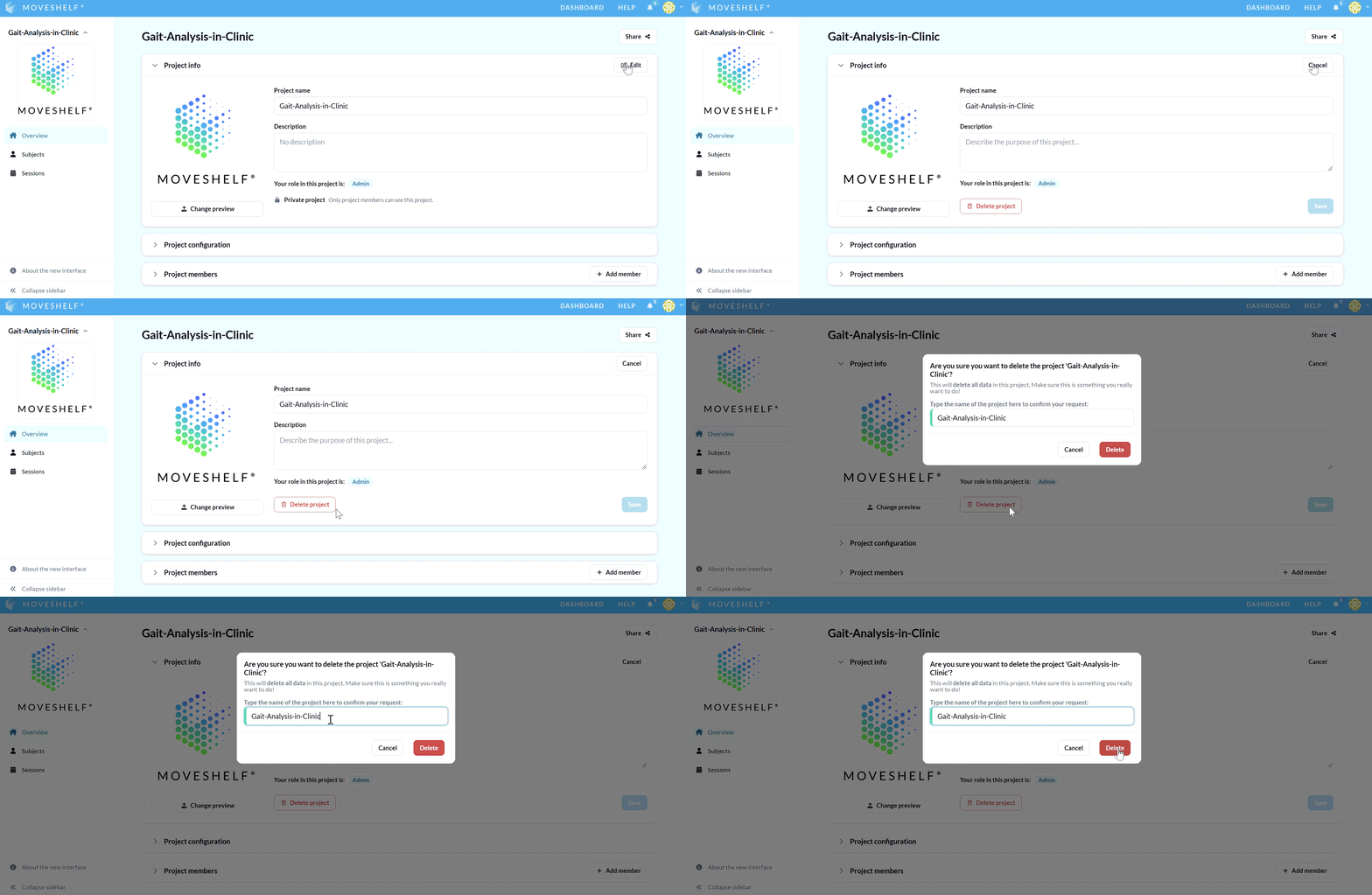
Note that if you delete this project, all data of this project will be deleted. Please contact Moveshelf support if you have accidentally deleted a project.Project settings
The subject information and session information are defined by the metadata template, while the overall project settings are defined by the project configuration.
Project
Project
admin(s)An admin is a member that has the rights to add others to a project, delete the project, edit data, and view data.
can change (click on the pencil) or remove (click on the x) both the metadata template and the project configuration in the Project overview page. To support engineers with importing metadata, project admin(s) can also download the metadata template by clicking on the download icon.

Project access settings
By default, projects can only be accessed by project members (see Add members to a project). However, a project can also be set as a "global project", which means that all members of your Moveshelf organization will have
Please contact Moveshelf support if you would like to change the access setting of your project.
viewerA viewer is a member that only has the right to view data (e.g., clinicians).
access to that global project (excluding guests and external users). EditorAn editor is a member that has the rights to edit and view data (e.g., lab operators).
and adminAn admin is a member that has the rights to add others to a project, delete the project, edit data, and view data.
access will still need to be given manually. Please contact Moveshelf support if you would like to change the access setting of your project.