Would you like to hear about webinars we're
doing, new features we're adding and projects we're undertaking? Sign up
here to our pleasantly infrequent newsletter!
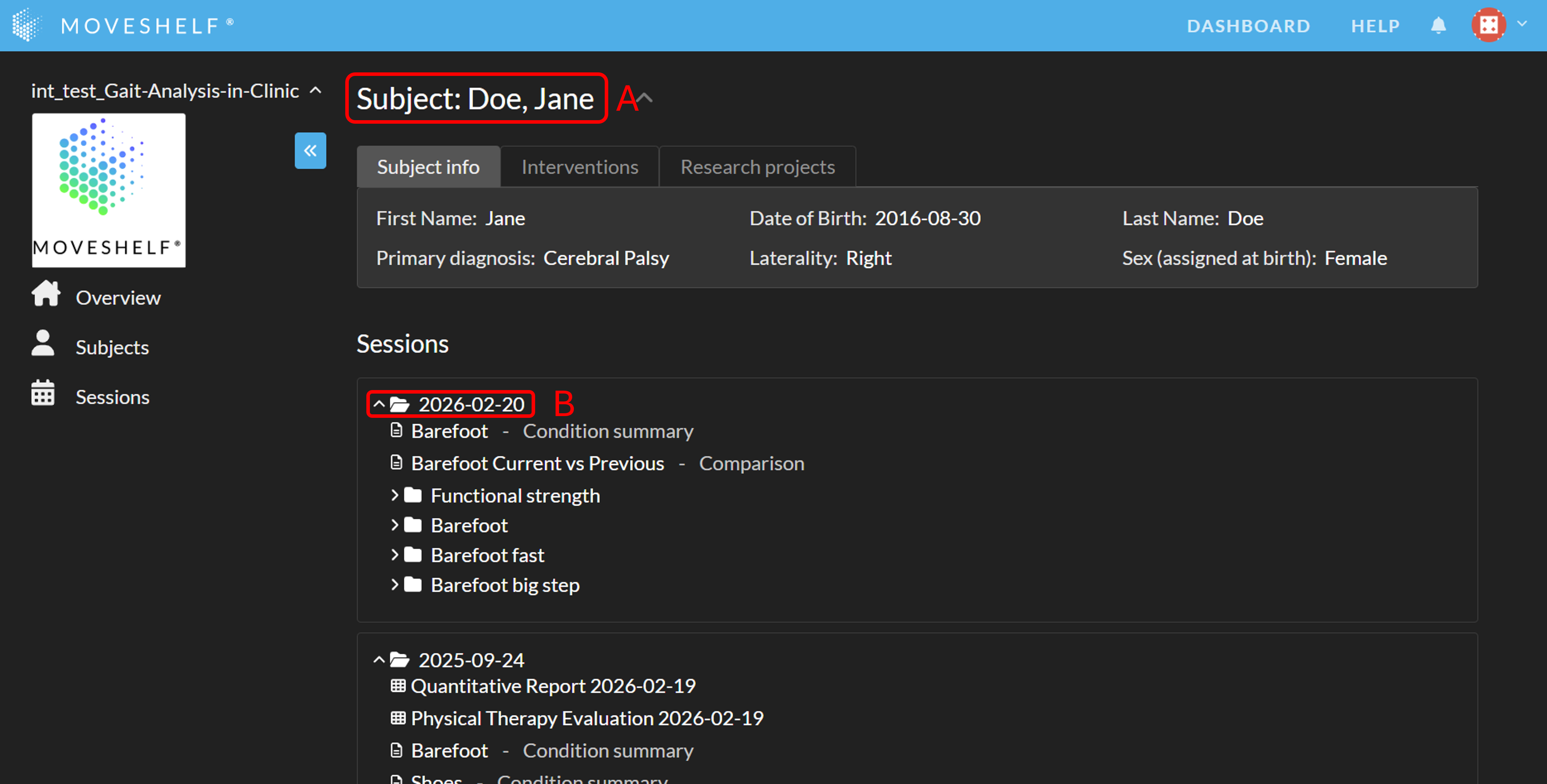
The subject home page gives you the overview of a subject. In this page you can find all relevant subject information and data from a subject. To navigate to this page, click on the subject’s name on top of the page (A in the picture below).
If you have entered a Moveshelf subject page through URL's from the EHR (deeplinks), you will only be able to see this subject and its data. You will not be able to navigate away from this subject. This feature is present for your organisation when you see a ‘shield’ icon next to the subject’s name.
Subject information
On the top of the subject home page entered subject information will be displayed. Information on the other tabs (e.g. Interventions and/or Research projects) will only be present if the lab operator populated information in these sections. Displayed tabs and content in the tabs depends on metadata configuration.
Click on ‘Subject info’ to view the specific subject information.
Click on ‘Interventions’ to view the shared interventions' notes.
Click on ‘Research projects’ to see research details.
View Movement data
Below the subject information, movement data is displayed. The movement data is ordered by when the subjects' sessions were created. The session includes all the session metadata (if present), all conditions that have been captured and subsequently each condition includes the trials that have been performed. When you click on the session-date-header (B in the picture above), the session will be opened.
Session information
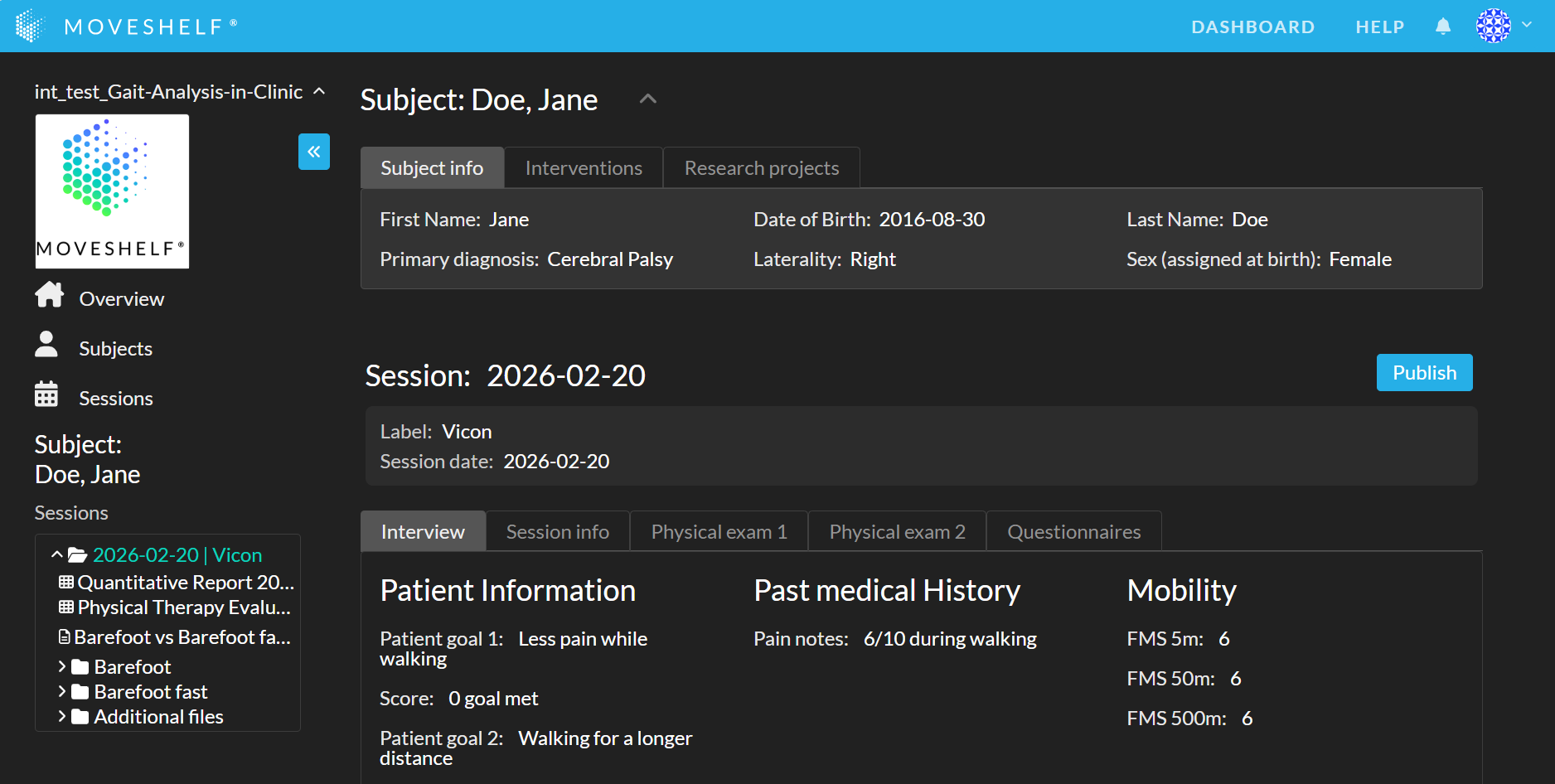
In case, session metadata is configured in the project, session metadata is displayed in the session.
Displayed content depends on the metadata configuration.
Click on ‘Interview’ to view the patient information, past medical history and mobility.
Click on ‘Session info’ to view the session information such as the referring physician.
Click on ‘Physical exam 1’ or ‘Physical exam 2’ to see exam(s) details.
Click on ‘Questionnaires’ to see questionnaires' details.
 If you have entered a Moveshelf subject page through URL's from the EHR (deeplinks), you will only be able to see this subject and its data. You will not be able to navigate away from this subject. This feature is present for your organisation when you see a ‘shield’ icon next to the subject’s name.